
Best Desk Mat Size for Dual Monitors: Measure Your Setup
Could a mat that spans both monitors be the wrong size for your desk? The best desk mat size for dual monitors depends on the working area below them, not the screens above. A wide mat can give your keyboard and mouse one continuous surface, but if it crowds a monitor stand or leaves too little room for accessories, it may not feel like a good fit.
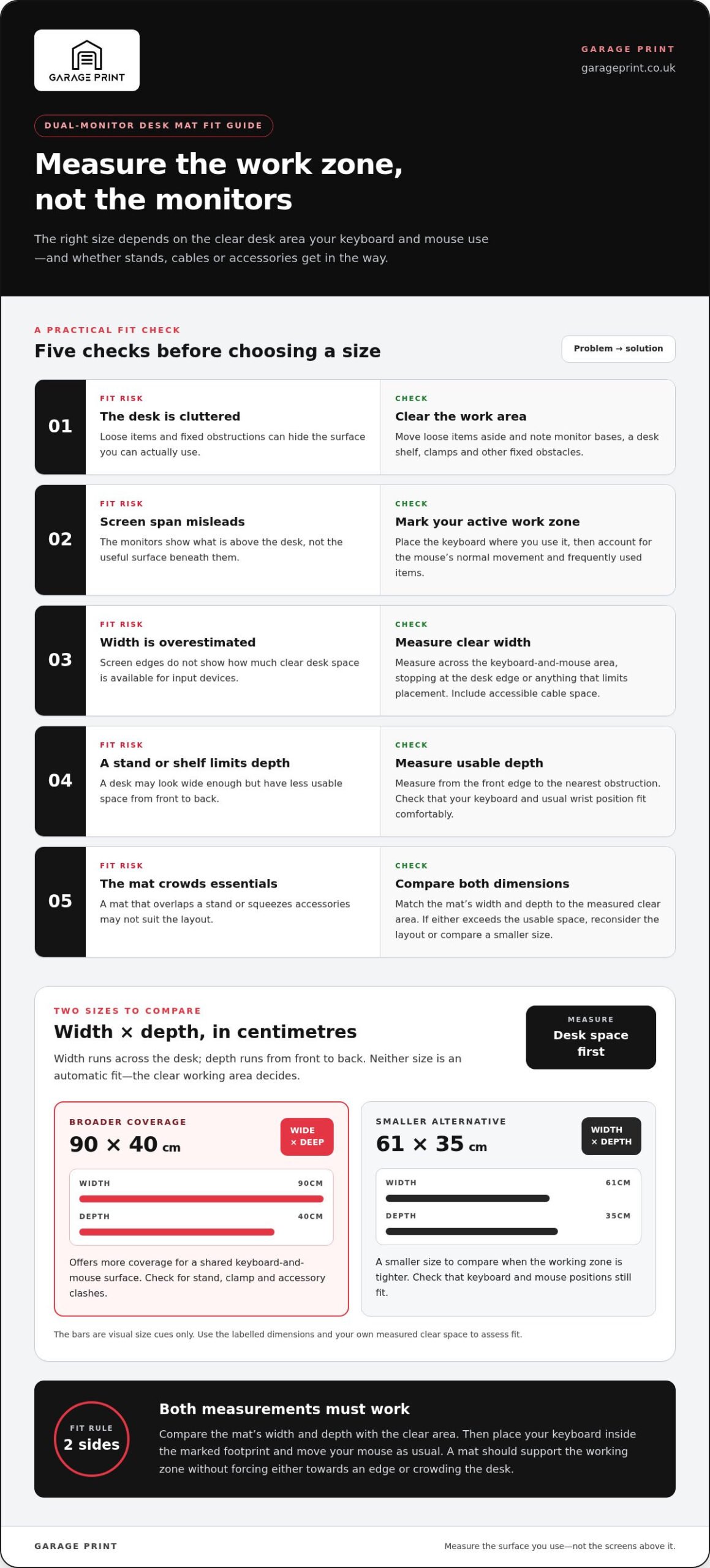
If product dimensions are hard to picture, you’re not alone. Measure the usable desk space and account for how you work: where the keyboard sits, how far the mouse moves and which items need to stay on the desktop. A 90cm × 40cm mat offers more coverage than a 61cm × 35cm one, but neither is automatically right for every setup.
This guide shows you how to measure your desk and choose a desk mat size, mark out a mat’s footprint and check for clashes before choosing a size. You’ll also see how monitor stands and mouse movement affect the fit, so you can compare both options and choose a custom-printed desk pad that suits your workspace.
Key Takeaways
- Choose coverage for the area where you work, rather than sizing a mat to the width of your monitors.
- Measure the clear desk space first, including obstructions and room needed for cables and frequently used items.
- The best desk mat size for dual monitors depends on whether your keyboard and mouse fit comfortably within the mat’s footprint.
- Compare the 90cm × 40cm and 61cm × 35cm options against your measured width and depth before deciding.
- Mark out the mat’s footprint to see whether a larger size would crowd your desk or limit space for accessories.
Best desk mat size for dual monitors: what should the mat cover?
Size the mat for your active work zone, not the screens alone. Your monitors show what’s above the desk; your keyboard, mouse and everyday accessories determine the useful surface below. The best desk mat size for dual monitors is the one that supports those working essentials without covering space you need for stands, cables or other equipment.
A dual-monitor desk mat is a surface sized to protect and support the part of the desktop used for everyday work, typically around the keyboard and mouse. It doesn’t have to match the combined width of your screens. A mat can provide a consistent place for mouse movement and a comfortable area for your hands, whilst leaving monitors and other equipment on the uncovered desk. A dedicated mouse surface enhances the usability of the mouse; a larger mat extends that practical area across more of the working zone.
Should a desk mat sit beneath both monitors?
Usually, the mat is for desk accessories, not for sitting beneath the screens. If monitors rest on bases, those bases take up desktop space, so position the mat where your keyboard and mouse actually sit. Don’t force it beneath a base if that makes placement awkward or unstable. With a separate monitor arm, the screens are raised off the surface, although the arm’s desk clamp may still occupy space near the back edge.
Your input devices determine how much coverage is useful. Check where your keyboard sits and how much room your mouse needs to move freely. The mat should support those positions without pushing the mouse towards the desk edge or leaving your keyboard partly off the surface.
What does 90cm × 40cm mean on a desk?
Think of 90cm × 40cm as width by depth. The 90cm measurement runs horizontally across the desk; 40cm runs from front to back. That gives the mat a broad span for a keyboard and mouse, with front-to-back coverage for the area where your hands work. Garage Print’s custom-printed desk pad in this size is a practical reference, not a universal fit claim: compare both measurements with the clear space on your own desk.
For a quick visual check, use a tape measure to mark out a 90cm-wide by 40cm-deep rectangle on the desktop. Place your keyboard inside it and move your mouse as you normally would. If the marked area overlaps a monitor base, desk clamp or regularly used accessory, adjust your layout before choosing. The 61cm × 35cm desk pad is a smaller alternative to compare against a tighter working zone.
How to measure your desk mat space for two monitors
Measure the surface your hands and accessories use, not the span between the screens. A tape measure and a few minutes with your desk cleared will turn product dimensions into a clear fit check. To find the best desk mat size for dual monitors, compare the available space with the mat’s width and depth before ordering.
- 1. Clear the surface. Move loose items so you can see the desk edges and fixed obstructions, including monitor bases, a desk shelf or a clamp.
- 2. Mark the working zone. Put your keyboard where you use it, then identify the space your mouse needs for comfortable movement. Include room for cables and frequently used items.
- 3. Measure the clear width. Measure across the area where the keyboard and mouse will sit, stopping at the desk edge or any obstruction that limits placement.
- 4. Measure the usable depth. Measure from the front edge of the desk to the nearest obstruction behind the working area. Check that the keyboard and your usual wrist position can sit comfortably within that space.
- 5. Compare the measurements. Check the clear width and depth against the mat dimensions, then consider whether anything would need to be moved or squeezed aside.
Measure the usable width across your dual-monitor workstation
Measure the clear span available for your keyboard and mouse, not the distance between the monitors or their outer edges. Screen spacing can be misleading: monitor bases may sit behind the working zone, whilst speakers, a desk lamp or other fixed items may reduce the mat area from either side. Include any cables that need to remain accessible, and don’t count space that an accessory occupies.
Check front-to-back depth around your keyboard and mouse
Start at the desk’s front edge and measure towards the nearest obstruction behind your keyboard and mouse. A monitor stand or desk shelf can reduce that depth, even if the desk looks wide enough. Place the keyboard in its usual position and move the mouse through its normal travel area; the mat shouldn’t force either towards an edge. Keep your monitor arrangement comfortable for everyday work, then measure the available surface around it.
Quick rule: compare the measured clear area with the mat dimensions before ordering. If either measurement exceeds the usable space, rethink the layout or consider a smaller size. Once you’ve measured, explore custom-printed desk pads in the size that suits your workspace.
Is a 90cm × 40cm desk mat big enough for dual monitors?
It can be, if your measured working area has room for its 90cm width and 40cm depth without obstructing your keyboard, mouse or desk accessories. A larger mat gives those essentials more shared surface, but the monitor count alone can’t tell you whether it will fit. Desk dimensions and accessory placement decide fit more reliably than monitor count.
Use this comparison as a fit check, not a universal rule. The width is the horizontal span across the desk; the depth runs from front to back. Compare both measurements with your clear work area, including any space taken up by stands or other equipment.
| Desk mat size | Width | Depth | Likely use |
|---|---|---|---|
| 90cm × 40cm | 90cm | 40cm | A broader keyboard-and-mouse area, where the measured zone accommodates it |
| 61cm × 35cm | 61cm | 35cm | A more compact work area or desk with tighter space constraints |
When the 90cm × 40cm size may suit your setup
If your clear work area can accommodate the full footprint, the 90cm × 40cm desk pad may provide a wider shared surface for your keyboard and mouse. It can suit a layout where you want both within the same covered zone, whilst leaving monitor bases or other accessories elsewhere on the desk. The mat doesn’t need to hold both monitor bases to be useful. Keep your screens, keyboard and mouse arranged for comfortable everyday use, then check that the mat fits around them.
When the 61cm × 35cm size may be a better fit
If the available space is limited by a desk edge, stand, shelf or frequently used accessory, the 61cm × 35cm option may suit the working area more comfortably. It is 29cm narrower and 5cm shallower than the larger size, so it offers less coverage but may leave more of the desktop free. Neither size is automatically best: the best desk mat size for dual monitors is the one that fits your measured layout and the way you position your keyboard and mouse.
Mark out each footprint on your desk before deciding. Check that the mat won’t overlap obstructions or crowd items you reach for regularly. This simple comparison makes the choice between the two custom-printed desk pad sizes more precise.
Will a dual-monitor desk mat crowd your keyboard, mouse, or desk?
It can, if you choose a large mat without checking its footprint against the usable desk space. A mat should make your work area more practical, not force your keyboard towards an edge or leave less room for items you use often. The best desk mat size for dual monitors depends on how your keyboard, mouse and accessories share the desktop.
- Benefits: A shared mat surface can give your keyboard and mouse a consistent area, protect more of the desktop and create a more unified working zone.
- Trade-offs: A mat that overlaps fixed equipment or takes up space needed for accessories may make the desk feel crowded and limit where you can place everyday items.
How monitor stands and arms change the available surface
Monitor bases sit directly on the desk and may occupy space behind or beside your work area. A monitor arm can free up that surface, but its clamp still needs room at the desk edge. Desk shelves can also reduce the available area beneath them. Measure around stand feet, clamps and shelves, then decide how much of the desktop you want the mat to cover. An arm doesn’t determine the mat size by itself.
Keep keyboard and mouse movement within the mat area
Place the keyboard where you naturally type, then check how much room your mouse needs during normal use. Sizing from the keyboard alone can leave too little clear space for mouse movement. Also check whether the mat’s edge would sit uncomfortably close to the desk edge or crowd a frequently used accessory.
Before settling for a smaller mat, see whether movable items such as a speaker or desk lamp can be repositioned. A quick layout test with the keyboard, mouse and accessories in their usual places can reveal whether the larger footprint works. If it still overlaps equipment or squeezes your working area, compare it with a smaller option against the same layout.
Once you’ve settled on the footprint that suits your desk, explore custom-printed desk pads in the size that fits your working area.
Choose a dual-monitor desk mat size with confidence
The final choice comes down to a simple comparison: does the mat’s full footprint fit the space you want to use, with your keyboard, mouse and everyday accessories still in place? The best desk mat size for dual monitors isn’t decided by screen count. It’s the size that suits your measured workspace and the way you use it.
A final fit checklist before choosing your mat
Run through these checks with your desk arranged as you normally use it:
- Width: Measure the clear horizontal area and check that the mat won’t press against desk edges or fixed accessories.
- Depth: Measure from the front edge to the nearest obstruction, such as a stand or shelf.
- Obstructions: Account for monitor bases, arm clamps, cables and items that need to stay accessible.
- Keyboard: Confirm it can sit in your usual typing position within the intended mat coverage.
- Mouse area: Leave enough clear surface for comfortable movement, rather than measuring from the keyboard alone.
Both the mat and the surrounding desk space matter. If your setup changes, for example if you move a monitor stand or add an accessory, recheck the measurements before settling on a size. A quick footprint test helps reveal whether the mat will fit without crowding the rest of your work area.
Match your measurements to a Garage Print desk pad
Garage Print offers custom-printed desk pads in two sizes: 90cm × 40cm and 61cm × 35cm. Consider the 90cm × 40cm option if your measured area accommodates its broader coverage for both keyboard and mouse. The 61cm × 35cm size may be more suitable if your available space is tighter or you prefer a more compact covered area. Neither is a universal fit, so let your measurements and accessory layout guide the decision.
Choose the size for fit first. Custom printing is the personalisation step that follows, allowing you to make the desk pad your own once you know which dimensions work with your setup.
Ready to compare the options? Explore Garage Print desk pads and choose the size that matches your measured workspace.
Make your desk mat choice with confidence
The best desk mat size for dual monitors is the one that fits your working area, not necessarily the width of your screens. Measure the usable width and depth, then account for monitor stands, shelves, cables and other fixed accessories. Finally, check that your keyboard sits naturally and your mouse has room to move.
Garage Print offers custom-printed desk pads in 90cm × 40cm and 61cm × 35cm sizes. Compare each footprint with your measurements: the larger option gives you more shared coverage, whilst the smaller one may suit a more restricted space. Once you’ve chosen a size that fits, custom printing lets you personalise your desk pad.
Ready to find the right starting point for your setup? Explore Garage Print desk pads and compare the available sizes. A careful measure now can help you create a desk space that feels considered, comfortable and distinctly yours.
Frequently Asked Questions
What is the best desk mat size for two monitors?
The best desk mat size for two monitors depends on your usable desk space and how you position your keyboard and mouse. A 90cm × 40cm mat offers more shared coverage, whilst a 61cm × 35cm mat takes up less space. Measure the clear work area, including room for accessories and any monitor stand, then compare both the width and depth before choosing.
Is a 90cm × 40cm desk mat big enough for two monitors?
Yes, a 90cm × 40cm desk mat can suit a dual-monitor workspace if your clear desk area can accommodate its full width and depth. It can provide a shared surface for your keyboard and mouse, but it doesn’t need to hold both monitor bases. Check for stands, shelves and accessories that might overlap the mat’s intended footprint before deciding.
Should my desk mat go under both monitor stands?
No, a desk mat doesn’t need to sit beneath both monitor stands. Its main purpose is to cover the working area used by your keyboard and mouse. If monitors rest on bases, measure around their feet and position the mat where you work. With a monitor arm, check the clamp’s footprint too. Choose coverage that works with your desk layout, rather than trying to cover the whole surface.
How do I measure a desk mat for a dual-monitor setup?
Clear the desk, place your keyboard where you normally type, and identify the space your mouse needs to move comfortably. Measure the available width across that work area, then measure from the desk’s front edge to the nearest obstruction behind it. Account for stands, shelves, cables and frequently used accessories. Compare both clear measurements with the mat’s width and depth before ordering.
Is a 61cm × 35cm desk mat too small for dual monitors?
Not necessarily. A 61cm × 35cm mat may work if you want to cover a more compact keyboard-and-mouse area and your desk has limited clear space. It provides less width and depth than a 90cm × 40cm mat, so check whether your keyboard and usual mouse movement fit within its footprint. Your layout and working habits matter more than the number of monitors.
Can I use a large desk mat if I have monitor stands?
Yes, if the mat fits the clear space around the stands without crowding your keyboard, mouse or other essentials. Measure the stand feet and any desk shelf or clamp, then compare those positions with the mat’s footprint. You can place the mat in front of the monitor bases rather than beneath them. If the stands restrict the available area, consider whether a smaller mat suits your setup better.